InsideEdges
LIMITED TIME: Inside Story Annual Plan is 50% off — subscribe now and get free Inside Edges credits. Claim your discount →
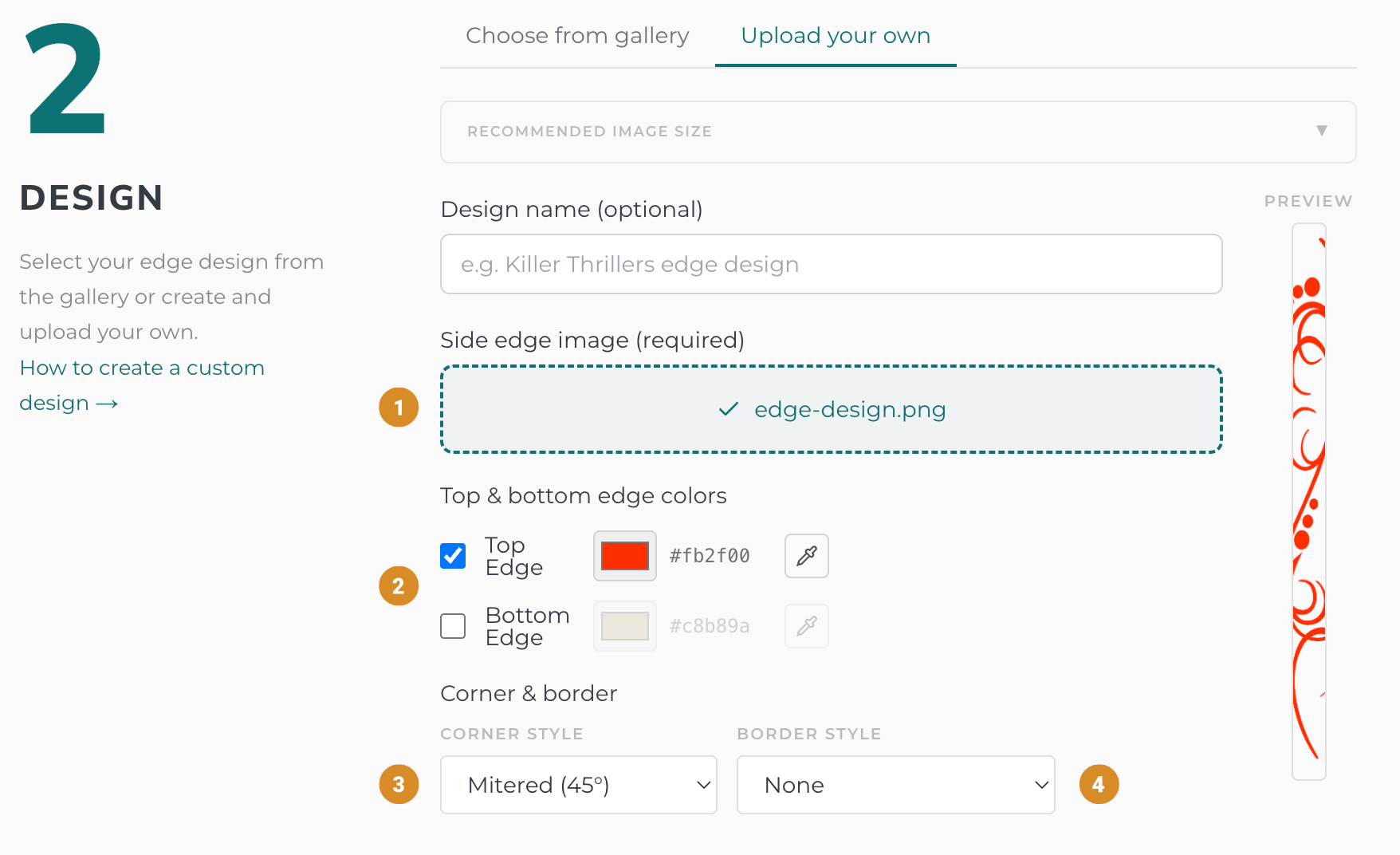
InsideEdgesA walkthrough for making your own edge design using Canva and uploading it to Inside Edges.
1
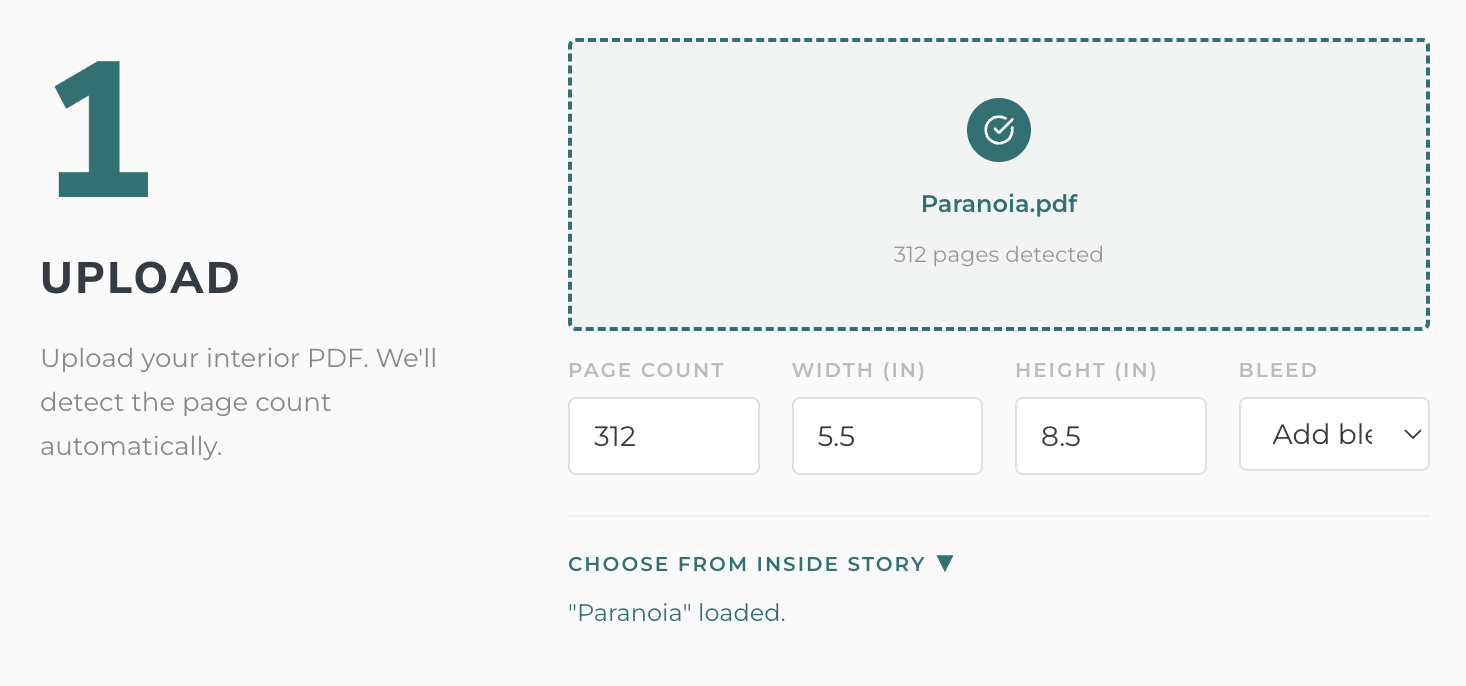
On the Create page, upload your interior PDF — or, if you have an Inside Story account, select a book that already has a PDF loaded.
Inside Edges will automatically read the page count, width, height, and whether your PDF already includes a bleed zone or needs one added.
2
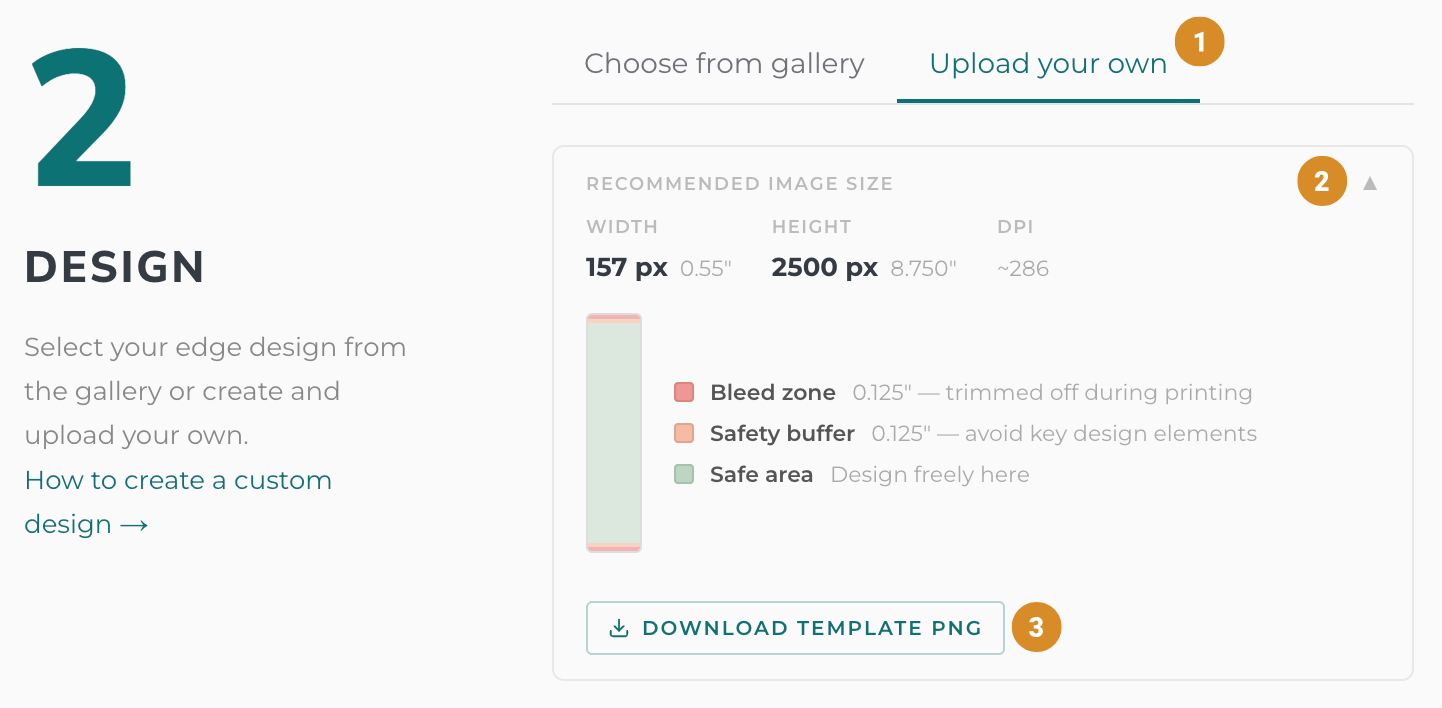
In Step 2 on the Create page, select the Upload your own tab. Then click Recommended Image Size. A box will appear showing the exact width and height — in pixels — that your edge image should be for this specific PDF.
Once you have those numbers, click Download Template PNG. This gives you a correctly sized template file to use as the base for your design in Canva.
3
These steps use Canva (recommended), but any image editor that supports PNG export will work.

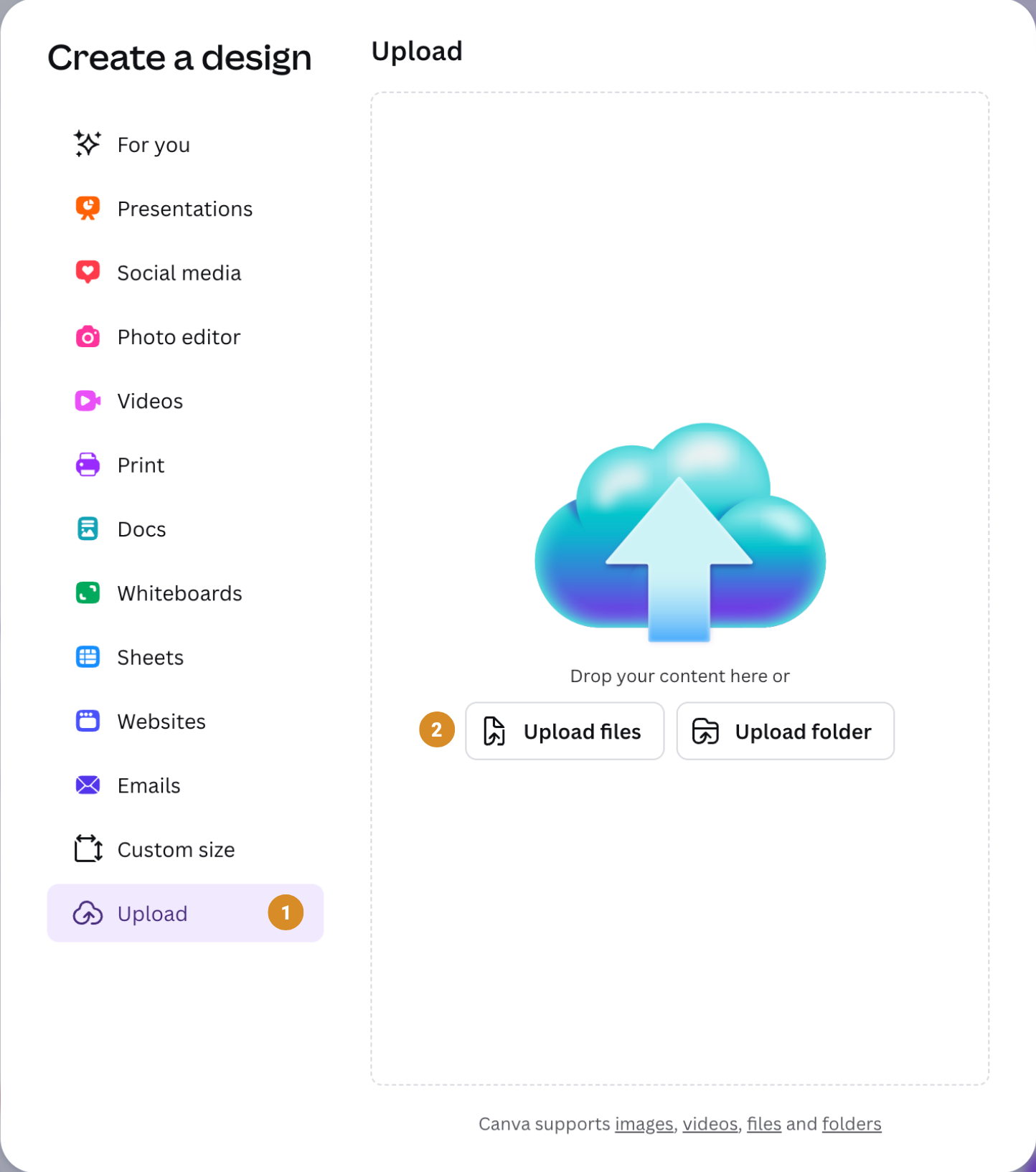
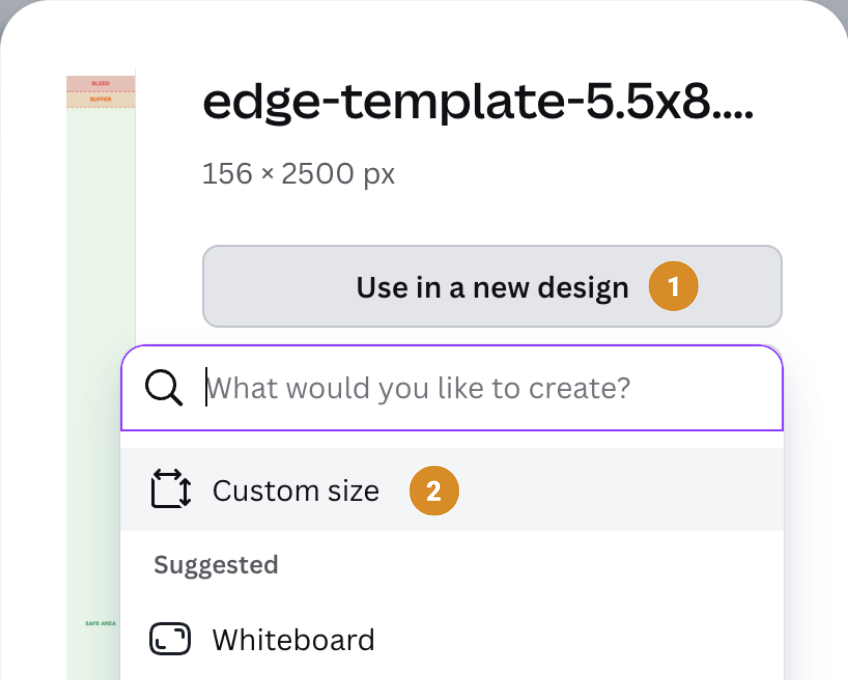
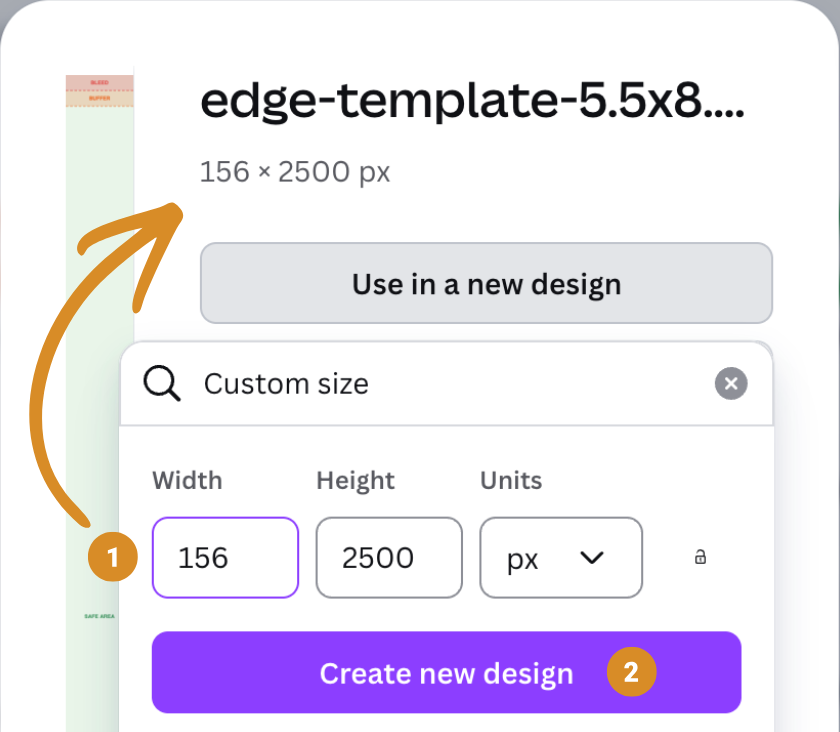
Use Canva images or your own to build your edge design. The template shows three margin zones — keep important design elements out of the red and orange zones:
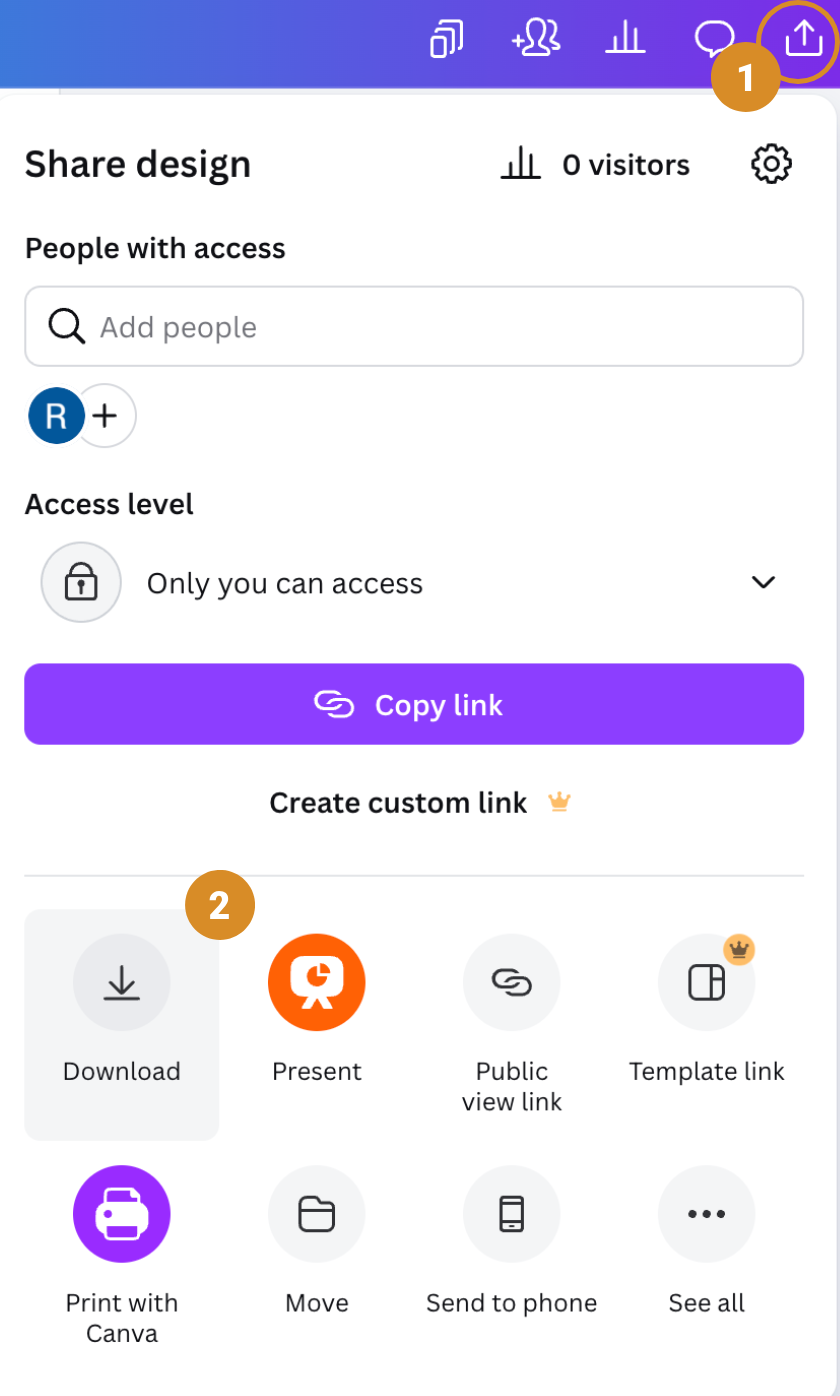
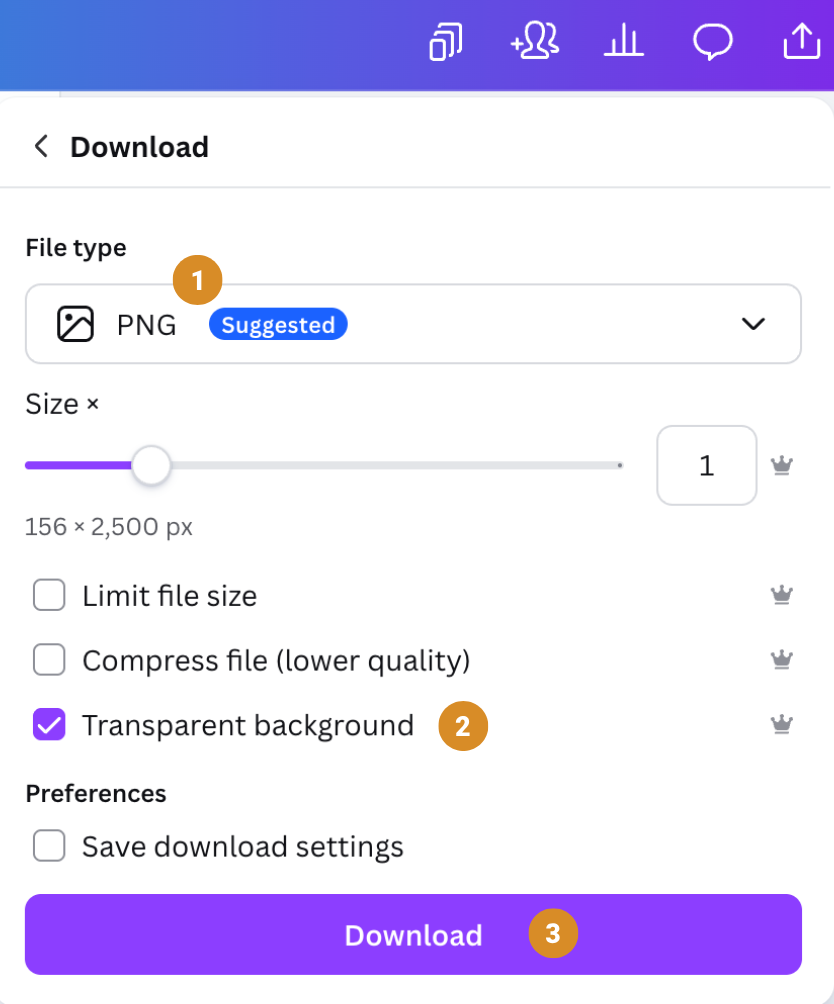
Set the File type to PNG. In most cases you won’t need a transparent background — but if you do, enable Transparent background (note: this is a Canva paid feature).
4
Use the interior preview in Step 3 to see how it will look before you process.